Learning Objectives
After completing this lesson, you'll be able to:
- Create points using addresses.
- Understand the limitations of geocoding services.
Video
Resources
- CulturalSpaces2016.csv
- C:\FMEData\Resources\IntegrateSpatialData\CulturalSpaces2016.csv
- Complete workspace
- C:\FMEData\Workspaces\IntegrateSpatialData\exercise-turn-coordinates-into-geometry-by-geocoding-addresses-complete.fmw
Introduction
Sometimes your dataset will contain only addresses, without latitude/longitude data. To handle these kinds of situations, you can use the Geocoder transformer.
The following services are supported:
|
Service
|
Modes
|
|
ArcGIS Online
|
Forward, Forward (Batch), Reverse
|
|
ArcGIS Server
|
Forward, Forward (Batch), Reverse
|
|
Azure Maps
|
Forward, Forward (Batch), Reverse, Reverse (Batch)
|
|
Bing
|
Forward, Reverse
|
|
Geocode.Farm
|
Forward, Reverse
|
|
Geocoder.ca
|
Forward, Reverse
|
|
Google
|
Forward, Reverse, Elevation, Timezone
|
|
HERE
|
Forward, Reverse
|
|
IPInfo.io
|
IP Address
|
|
ipstack
|
IP Address
|
|
OpenCage
|
Forward, Reverse
|
|
OpenStreetMap
|
Forward, Reverse
|
|
Precisely
|
Forward, Reverse, Forward to Key, Reverse From Key
|
|
TAMU
|
Forward, with census region information
|
Some Geocoder services support "reverse geocoding," finding the nearest address given a coordinate. Note also that the exact address format that gives you the best chance of successful geocoding will vary by service. Refer to the service's documentation and use an AttributeManager or other transformers to ensure you provide the transformer with an address format it expects.
Exercise
1) Open FME Workbench
Open FME Workbench (2026.1 or later).
Click Blank Workspace to start a new workspace.
2) Add CSV Reader
Click Readers > Add Reader and set Format to CSV (Comma-Separated Value).
Click the ellipsis button [...] and select the downloaded CulturalSpaces2016.csv dataset or paste in the URL.
Click OK.
3) Add a Geocoder
Add a Geocoder to the canvas connected to the CSV feature type.
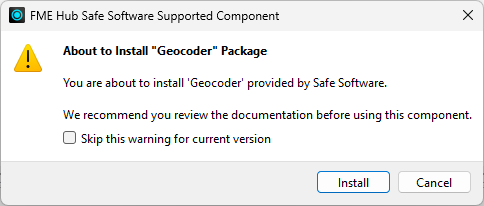
The Geocoder is shipped as an FME package, so you can update it without needing to update your FME version. Because it ships as a package, FME asks you to confirm you wish to install it when you try to add it. Click Install to proceed:
If you want to use the Google Maps geocoder:
If you don't want to sign up, set Geocoding Service to use the free OpenStreetMap geocoder.
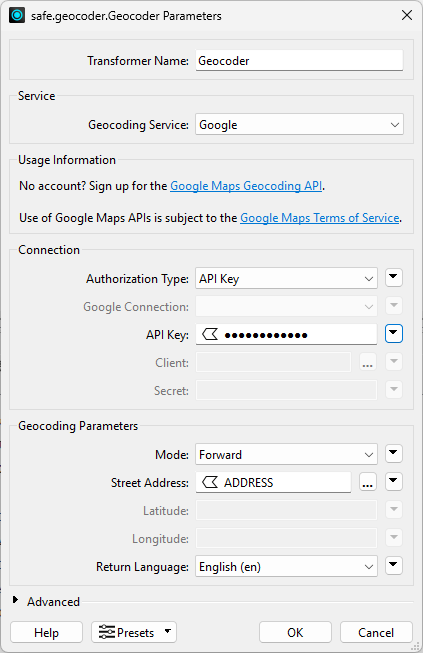
Next, for Street Address, identify where the address is stored and select that attribute. For this example, the address is stored in ADDRESS.
Here's what the dialog will look like if you use Google:
Before running the translation, set the Rejected Feature Handling workspace parameter to Continue Translation. We need to do this because some cultural spaces don't have an address, so our translation will stop when the Geocoder rejects them. To do this, in the Navigator Pane > Workspace Parameters > Log and Troubleshoot > Rejected Feature Handling > Continue Translation. After running the translation, you will see the points in Visual Preview.
4) Run the Workspace
Run the workspace and inspect the results.
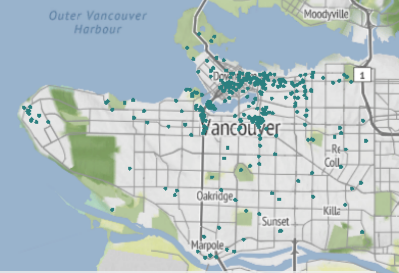
The output of point features using any of the three methods. Stylized in FME Data Inspector using map tiles by Stamen Design, under CC-BY-3.0. Data by OpenStreetMap, under CC-BY-SA.
